

Download Keyboard Tweaker – Free Productivity Tool for Custom Keyboard Shortcuts on Windows & Mac
Why Keyboard Tweaker is a Must-Have for Power Users and Productivity Enthusiasts
If you're someone who values speed, efficiency, and control over your digital workspace, Keyboard Tweaker is a game-changing tool you shouldn’t overlook. This lightweight yet powerful software transforms your standard keyboard into a fully customizable productivity hub. Whether you're a developer, designer, student, or office worker, Keyboard Tweaker empowers you to create custom key combinations that launch your most-used applications, open specific files, navigate webpages, adjust system volume, and even run scripts—all with a single keystroke.
The real magic lies in its ability to bypass the mouse entirely, drastically reducing time spent on repetitive tasks. For example, instead of clicking through menus to open your email client or launch your favorite code editor, you can assign a shortcut like Ctrl + Alt + E and get there instantly. The software supports all standard modifiers—Control, Alt, Shift—along with any key on your keyboard, giving you nearly unlimited configuration possibilities.
One of the standout features is its built-in conflict detection: if your chosen shortcut is already in use by another program, Keyboard Tweaker will alert you, preventing confusion and system glitches. This attention to detail makes it both beginner-friendly and reliable for advanced users. While the interface may not be the most modern or visually polished, its functionality more than compensates.
It’s a tool designed for utility, not aesthetics. With regular updates and a secure installation process, Keyboard Tweaker ensures compatibility with the latest versions of Windows and Mac operating systems. It’s ideal for anyone looking to streamline their workflow and reclaim precious seconds every day.
Key Features That Make Keyboard Tweaker a Productivity Powerhouse
Keyboard Tweaker isn’t just about launching apps—it’s a full-featured automation and customization engine. Here’s what sets it apart:
- Custom Keyboard Shortcuts for Any App – Assign unique key combos to launch your favorite programs, from Photoshop to Slack, with a single press.
- File and Web Address Launching – Open specific documents, MP3s, JPGs, or even URLs (like
https://google.com) using your custom shortcuts. - System Control Integration – Use shortcuts to adjust volume, mute audio, or even lock your screen—perfect for quick system management.
- Script Automation Support – Run batch files, PowerShell scripts, or VBScript tasks directly from a keyboard combo, ideal for developers and IT professionals.
- Conflict Detection – The app warns you if your shortcut overlaps with an existing system or application shortcut, ensuring smooth operation.
- Portable and Lightweight – No heavy installation required. The app runs efficiently without consuming significant system resources.
- Multi-Platform Compatibility – Works seamlessly on Windows 10/11 and macOS, making it a versatile choice for mixed environments.
These features make Keyboard Tweaker a true productivity multiplier. For instance, imagine pressing Ctrl + Shift + T to open your daily task manager, then Ctrl + Shift + P to launch your project folder and open your main code file—all within seconds. No more hunting through desktop icons or start menus.
The ability to assign shortcuts to files and web links is particularly useful for creatives who need instant access to assets or reference pages. Whether you're managing a content calendar, coding, or handling customer support tickets, Keyboard Tweaker reduces friction at every step. The software is also highly secure, with no telemetry or intrusive ads, and it doesn’t require admin rights for basic use.
It’s designed with privacy in mind, so your custom configurations stay local and private. With regular updates, the developers continue to refine performance and compatibility, ensuring long-term usability. For users who want more control over their keyboard without the complexity of advanced automation tools, Keyboard Tweaker strikes the perfect balance between simplicity and power.
How to Install and Use Keyboard Tweaker on Windows and Mac
Getting started with Keyboard Tweaker is straightforward and doesn’t require technical expertise. First, visit the official website and download the latest version of the software—available for both Windows and Mac. The download is free, secure, and comes with a small installer file that doesn’t clutter your system.
Once downloaded, run the installer and follow the on-screen prompts. On Windows, you may need to allow the app to run if your antivirus flags it due to its system-level access—this is normal and safe. After installation, launch the app from your desktop or applications folder.
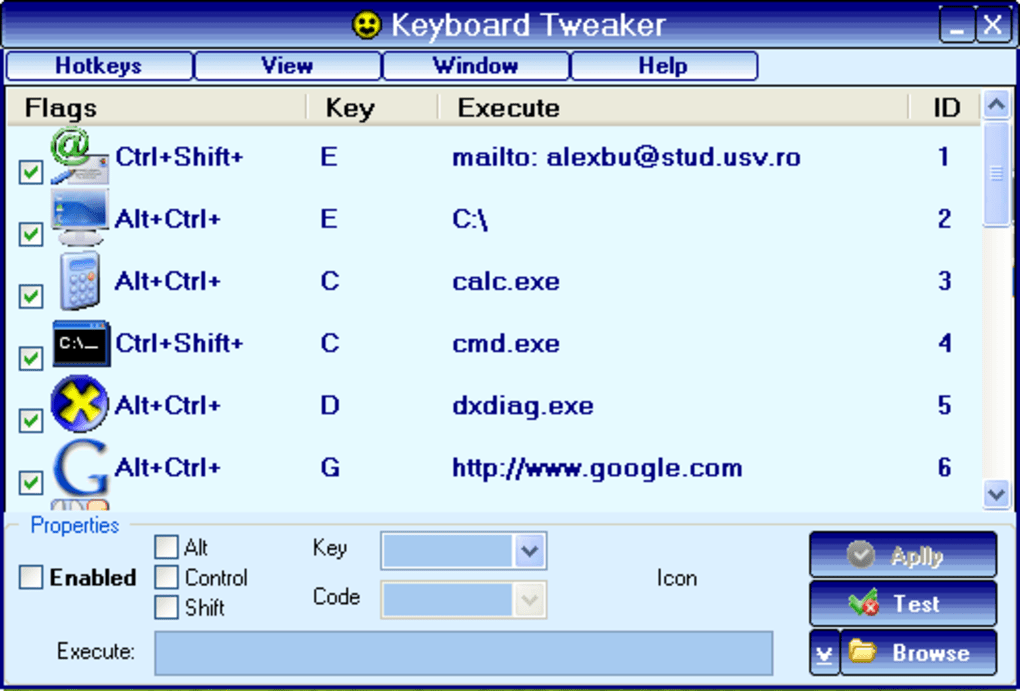
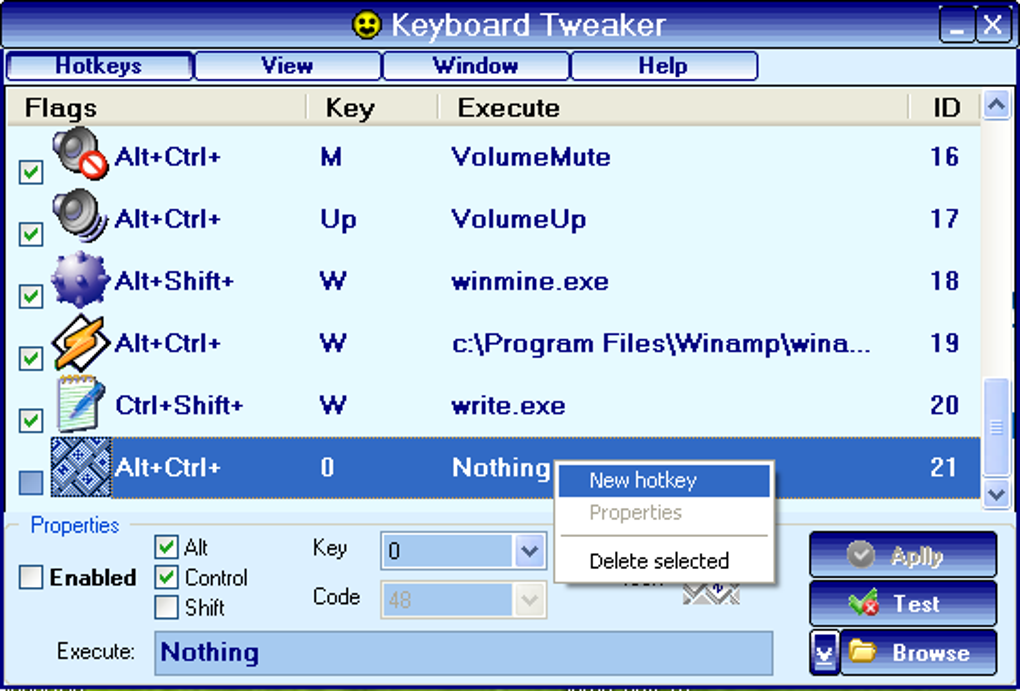
The main interface is simple: a list of existing shortcuts, a “+” button to add new ones, and a settings panel for advanced options. To create a new shortcut, click “Add,” then select the key combination you want (e.g., Ctrl + Alt + S). Next, choose the action: launch an app, open a file, open a URL, or run a script.
You can browse your system to select the target file or enter a web address manually. The app will immediately check for conflicts and notify you if the shortcut is already in use. Once confirmed, your shortcut is active.
You can test it right away by pressing the keys. To manage or edit existing shortcuts, simply select them from the list and click “Edit” or “Delete.” The software also supports exporting and importing shortcut profiles, making it easy to transfer your setup across devices. For users who prefer automation, you can integrate Keyboard Tweaker with task schedulers or batch files.
It runs in the background and starts automatically with your system, ensuring your shortcuts are always ready. Regular updates are pushed through the app or via the website, so you’ll always have access to the latest features and security patches. With its intuitive workflow and minimal learning curve, Keyboard Tweaker is accessible to users of all skill levels.
Compatibility, Pros, and Cons: Is Keyboard Tweaker Right for You?
Keyboard Tweaker is compatible with Windows 10, Windows 11, macOS 10.14 and later, making it a versatile choice for most modern users. It runs smoothly on both 32-bit and 64-bit systems, with no known performance issues. However, it’s important to note that some advanced features may require admin privileges on certain systems. Here’s a balanced look at what makes this tool great—and where it could improve:
Pros
- Free to download and use with no hidden costs.
- Lightweight and fast, with minimal impact on system resources.
- Supports complex automation tasks like script execution.
- Intuitive interface despite its minimal design.
- Strong conflict detection prevents shortcut clashes.
- Runs in the background without interfering with other apps.
Cons
- Interface design is outdated and could use a modern refresh.
- Limited visual feedback during shortcut assignment.
- No built-in cloud sync for shortcut profiles.
- Mac version has fewer customization options compared to Windows.
Despite these minor drawbacks, Keyboard Tweaker remains one of the most effective tools for keyboard customization. It’s especially valuable for users who rely on repetitive workflows and want to eliminate unnecessary clicks. If you’re looking for a no-frills, high-impact tool to boost efficiency, it’s definitely worth a try.
FAQ: Everything You Need to Know About Keyboard Tweaker
Is Keyboard Tweaker free to use?
Yes, Keyboard Tweaker is completely free to download and use. There are no premium tiers or subscription fees. The software is ad-free and does not collect user data.
Can I use Keyboard Tweaker on both Windows and Mac?
Yes, Keyboard Tweaker is available for both Windows 10/11 and macOS 10.14 and later. The core functionality is consistent across platforms, though the Mac version has slightly fewer advanced options.
Does Keyboard Tweaker work with any keyboard?
Yes, it works with any standard USB or built-in keyboard. It doesn’t require special hardware and supports all standard key combinations, including modifier keys.
Can I run scripts with Keyboard Tweaker?
Absolutely. You can assign custom shortcuts to run batch files, PowerShell scripts, VBScript, or any executable file—making it ideal for automation tasks.
How do I update Keyboard Tweaker?
Updates are available through the official website. The app also checks for updates automatically when launched, and you’ll be notified if a new version is available.
Final Verdict: A Smart, Free Tool for Smarter Workflows
Keyboard Tweaker is more than just a keyboard shortcut manager—it’s a productivity catalyst. While its interface may lack modern polish, its functionality is top-tier, offering unmatched flexibility for customizing your workflow. Whether you’re launching apps, opening files, controlling volume, or automating scripts, this tool delivers real value. It’s secure, lightweight, and regularly updated, making it a reliable companion for both casual users and power users alike. If you’re serious about boosting efficiency and minimizing mouse dependency, download Keyboard Tweaker today and start reaping the benefits of a smarter, faster computing experience.
CTA: Click here to download Keyboard Tweaker for free and transform your keyboard into a productivity powerhouse.







